
|
Navigation from your Home screen:
 >

Use the mobile app's Fleet Reconcile tool to generate a physical inventory report from your location's lot, making sure the units in your system are all accounted for.
How to Reconcile Fleet on Mobile
Your employee role must have the Edit Fleet permission to edit unit records and the Fleet Status permission to change a unit's status using this tool.
Quick Steps
| 1 |
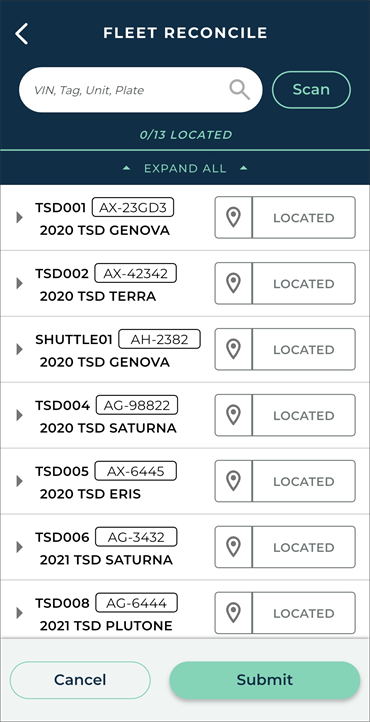
Tap More > Fleet Reconcile to view the list of active units at your current location not In Use on an agreement. |
|
| 2 |
Scan or search for a unit. |
|
| 3 |
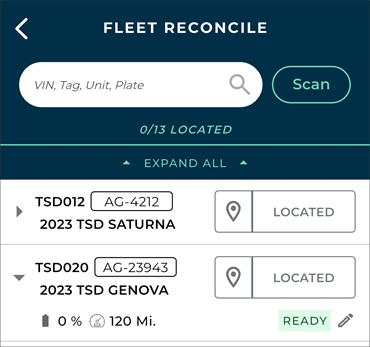
Mark a unit as 'located' on your lot (tap LOCATED) Tap a unit to edit status, fuel / battery, mileage. Telematics Integration Tap the location icon ( |
|
| 4 |
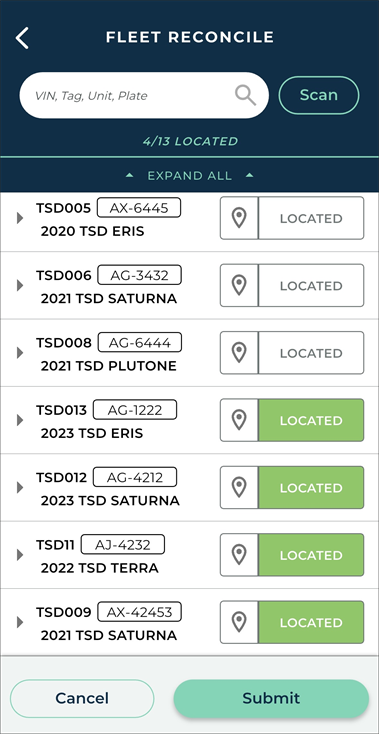
Tap to generate and send your report to your email address. |
|
Full Walkthrough
1. Generate a list of inventory
Tap > .
Note: If you already started a Fleet Reconcile and saved your progress within the last hour, you are prompted to resume your unfinished report or start a new one.
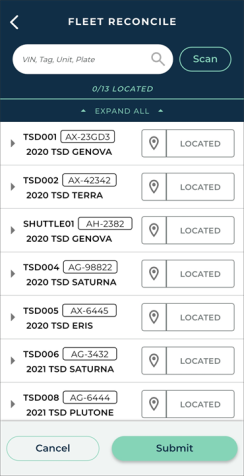
The Fleet Reconcile list contains units at your current location that are not In Use or Removed From Fleet (or Removed From Pending Import, if that applies).
2. Scan or Search for a Unit to Find it in the List
If your inventory is large, you might find it easier to scan a unit's barcode or QR code () or filter the list by entering the unit's VIN, Tag Number, Unit Number, or License Plate Number.
3. Mark a Unit as 'Located', Edit its Status, and More.
If you need to pause reconciling your fleet (say, to service a customer), you can go back ( ) and choose to save your progress. You can resume your reconciliation process within an hour.
You have the following options for units in your Fleet Reconcile list:
- Mark the unit as 'Located' on your lot. Tap LOCATED. It turns to green (LOCATED).
- View or edit fuel / battery, mileage, and status. Tap a unit in the list to expand it and view more details. Tap edit (
 ) to change the fuel / battery, mileage, or status, depending on your role permissions.
- Telematics Integration View the unit's location on a map. Tap the location icon (
 ) to pinpoint the unit's exact location, using Telematics. See "TSD Telematics".
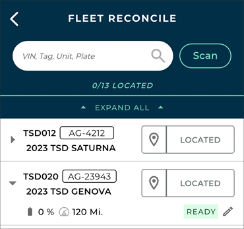
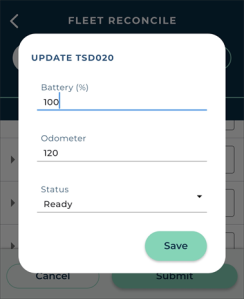
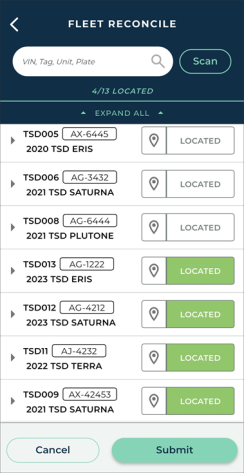
4. Submit to Generate Your Fleet Reconciliation Report.
When you're finished reconciling your fleet, tap .
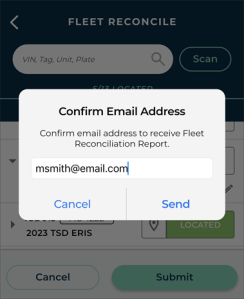
Confirm your email address, and tap Send. A Fleet Reconciliation Report (Fleet_Reconciliation_report.csv) is sent to your employee email address.
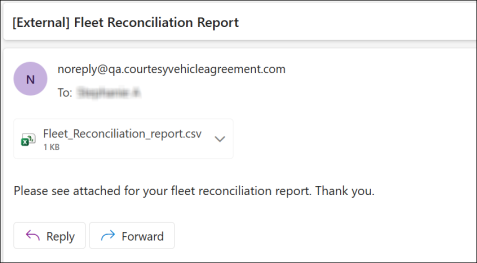
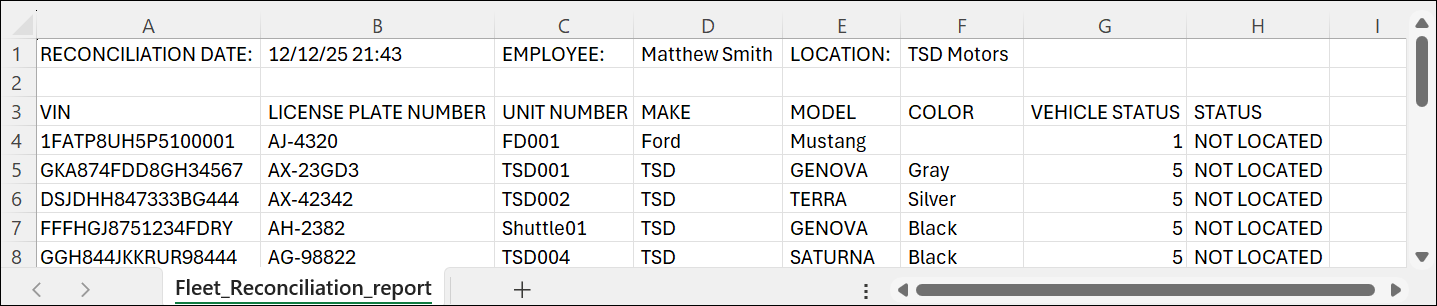
This report contains key information about the Fleet Reconcile session, including the date / time, employee, and location, as well as information about each unit in the list:
- VIN
- License Plate Number
- Unit Number
- Make
- Model
- Color
- Vehicle Status (e.g., 1 for Ready)
- Status (e.g., Located or Not Located)
Hover to view the full-sized image.
© 2026 TSD Rental, LLC